For Managers
This guide covers creating tests, inviting candidates, and understanding the proctoring data you'll receive. We're intentionally transparent about what candidates experience — because they can read this page too, and that's by design.
Creating a Test
A test is a collection of coding questions that candidates will answer during their interview. To create one:
- Log into the Interview Zen dashboard at app.interviewzen.com
- Navigate to your test library
- Create a new test with a name and description
- Add coding questions — each question has a prompt and optional starter code
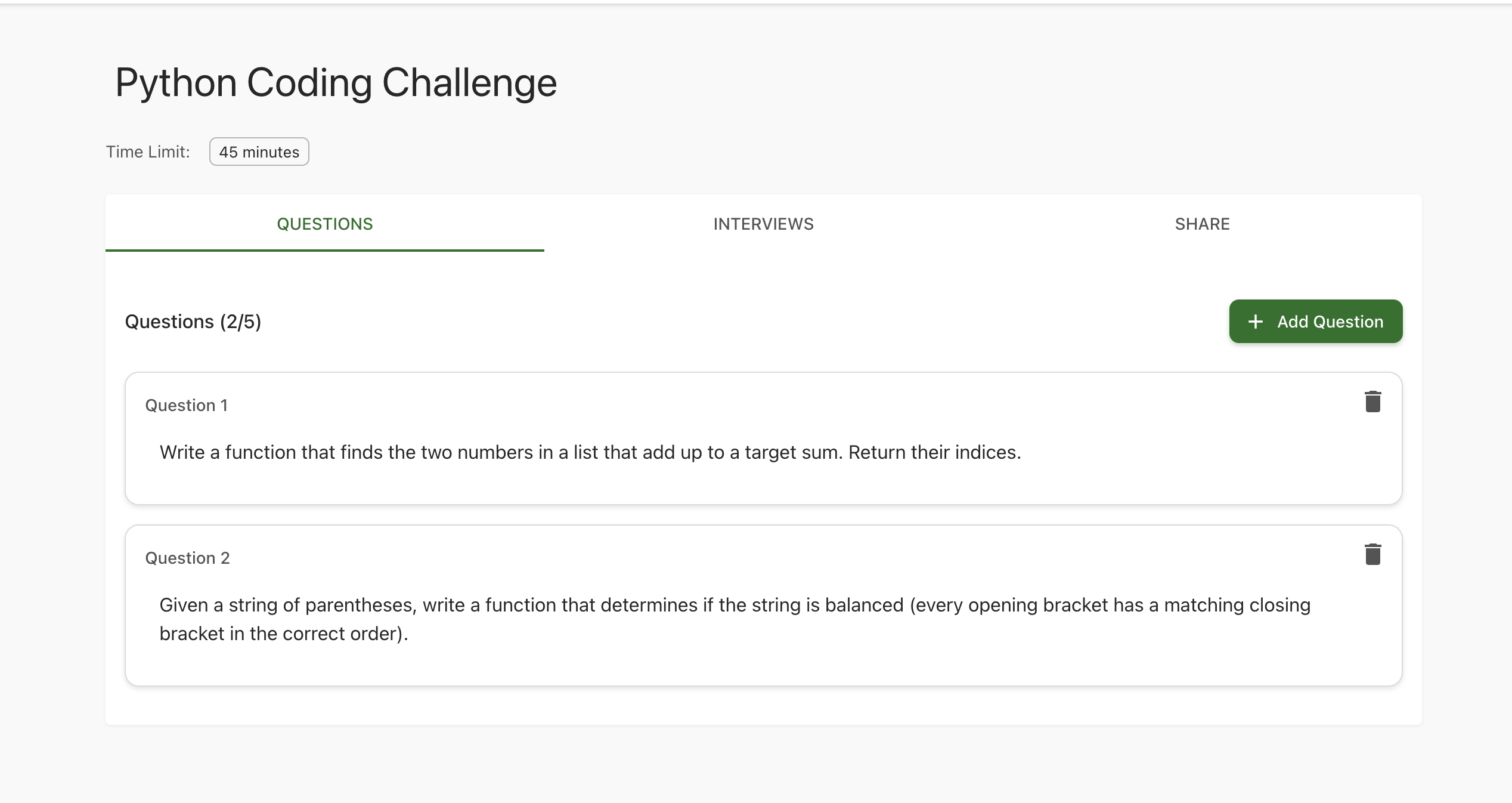
You can create multiple tests for different roles (e.g., "Frontend Engineer" vs. "Backend Engineer") and reuse them across candidates.
Inviting Candidates
Once your test is ready, invite candidates directly from the test detail page:
- Click "Invite Candidate"
- Enter the candidate's name and email
- Add an optional personal message
- Click send
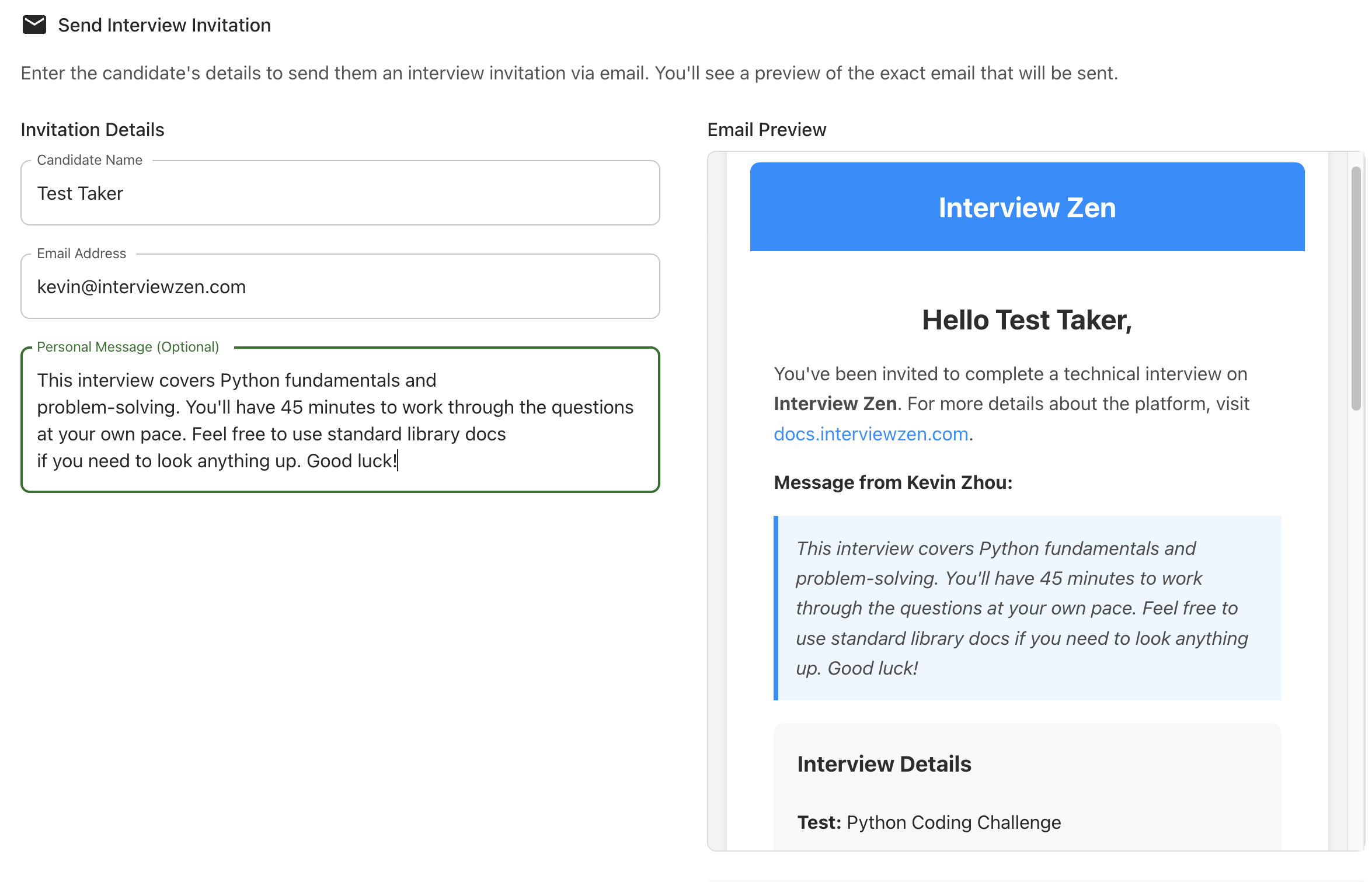
The candidate receives an email with:
- Their unique interview access code
- A download link for the Interview Zen app
- A direct launch link if they already have it installed
- Your personal message (if provided)
You're automatically CC'd on the invitation email so you have a record of what was sent.
What Candidates Experience
When a candidate opens the app and enters their code, they go through a guided setup:
- Permission checks — camera, screen recording, and app scanning. Each permission is shown as a card that turns green when granted.
- Interview start — they see the first question and a full-featured code editor with syntax highlighting and autocomplete.
- Working through questions — they navigate between questions, write code, and submit answers. There's a timer showing remaining time.
- Completion — they submit their final answers and the proctoring data uploads automatically.
There is no live video call. Candidates work independently in the app. This is intentional — it removes the pressure of being watched in real time and lets candidates focus on the code.
What You'll See After the Interview
Here's exactly what proctoring data is collected and made available to you. We're listing this transparently because candidates deserve to know what's being shared.
Code Submissions
Each question's answer, including the full keystroke history showing how the solution evolved over time. You can replay the candidate's coding process to understand their approach, not just the final result.
Periodic Screenshots
The app captures screenshots of the candidate's screen at intervals during the interview. These are snapshots — not continuous video. They show what applications were on screen and how the candidate was working.
Periodic Webcam Photos
Roughly 5 webcam photos are taken across the interview (approximately every 9 minutes). These confirm the candidate was present and working independently. They are not live video — no one watches the candidate in real time.
Violation Events
If the app detects a prohibited application, a focus loss, or a stream interruption, it logs the event with:
- What happened (e.g., "Discord detected," "Camera stream lost")
- When it happened (timestamp)
- A short evidence clip or screenshot documenting the event
What You Do NOT Receive
- Live camera feed or continuous video recording
- Contents of the candidate's other applications
- Browsing history outside the interview
- Files from the candidate's computer
- Keystrokes outside the code editor
Understanding Violations
Not all violations are equal. Here's how to interpret common events:
| Event | What It Means | How to Interpret |
|---|---|---|
| Prohibited app detected | An app like Discord, ChatGPT, or TeamViewer was found running | Check the duration. A brief appearance (quickly closed) is likely accidental. Sustained use is more concerning. |
| Focus loss | The candidate switched away from the interview window | Could be checking documentation (normal) or could indicate alt-tabbing to another tool. Check the screenshot evidence. |
| Camera stream lost | The webcam disconnected or was blocked | Often a hardware issue — USB cameras disconnect, laptop lids get partially closed. Check if the lockout was resolved quickly. |
| Screen recording lost | The screen capture stream was interrupted | Usually a permission issue or system sleep. The app gives a 5-second grace period before locking. |
| Interview locked | Camera or screen stream was lost beyond the grace period | The candidate saw a lockout screen with recovery instructions. Check if they recovered and resumed normally. |
Context matters
A candidate whose camera briefly disconnected and who recovered in 30 seconds had a hardware glitch. A candidate who had Discord open for 20 minutes during a coding question warrants a closer look. The proctoring data gives you the evidence — the interpretation is yours.
Interview Lockout (What Candidates See)
If a candidate's camera or screen recording stream is lost, the app enforces a temporary lockout:
- 5-second grace period for screen recording loss
- 10-second grace period for camera loss
- If the stream doesn't recover, a lockout overlay covers the interview
During lockout:
- The interview timer pauses
- The candidate's code is preserved
- They see status indicators and a "Resume Interview" button
- The lockout clears automatically once streams are restored
This is designed to be firm but fair. We don't want candidates losing interview time due to a camera cable coming loose. The lockout ensures integrity while giving candidates a clear path to recovery.
Prohibited Applications
The default prohibited app list includes:
AI Coding Assistants
- ChatGPT, Claude, GitHub Copilot, Tabnine, Codeium, Cursor
Communication Apps
- Discord, Slack, Microsoft Teams, WhatsApp, Telegram, Signal
Remote Access Tools
- TeamViewer, AnyDesk, Chrome Remote Desktop, VNC, RustDesk
What's explicitly allowed:
- Code editors and IDEs
- Terminal / command line
- Documentation browsers
- Calculators and note-taking apps
- Stack Overflow and language reference sites
Data and Privacy
Retention
All interview data — recordings, screenshots, webcam photos, code submissions — is automatically deleted after 30 days. This gives you enough time to make hiring decisions without retaining sensitive data indefinitely.
Encryption
Data is encrypted during transmission (TLS) and at rest. Interview recordings upload directly to secure storage — they don't pass through intermediate servers.
Access Control
Only authenticated users in your organization can access interview data. Access is scoped to interviews you created.
Candidate Rights
Candidates can request early deletion of their data by contacting [email protected]. If a deletion is requested, the data is removed promptly.
Compliance
Interview Zen stores data in AWS infrastructure with encryption at rest and in transit. We maintain access logs for all data access. Our full privacy policy is available at interviewzen.com/privacy-policy.
Subscription and Limits
Your subscription plan determines how many interview invitations you can send per month. The current usage and remaining invitations are visible in your dashboard. If you hit your limit, you can upgrade your plan or wait for the next billing cycle.
Support
- Dashboard issues: Email [email protected]
- Billing questions: Email [email protected]
- Privacy or compliance inquiries: Email [email protected]
- Urgent interview-day issues: Email [email protected] with "URGENT" in the subject line
We respond within 24 hours for standard inquiries and prioritize active interview issues.