For Candidates
We know technical interviews are stressful enough without dealing with unfamiliar software. This guide explains exactly what Interview Zen does, what it records, why, and what your rights are. No surprises.
Getting Started
Step 1: Check Your Email
When a company invites you to interview, you'll receive an email with:
- Your interview access code (a unique ID you'll paste into the app)
- A link to download the Interview Zen desktop app
- A direct launch link if you already have the app installed
Step 2: Install the App
Download the installer for your operating system:
- macOS: Open the
.dmgfile and drag Interview Zen to your Applications folder. The first launch will ask you to confirm since it's downloaded from the internet — this is normal. - Windows: Run the
.msiinstaller. No administrator privileges required.
The download is roughly 100 MB and installation takes under two minutes.
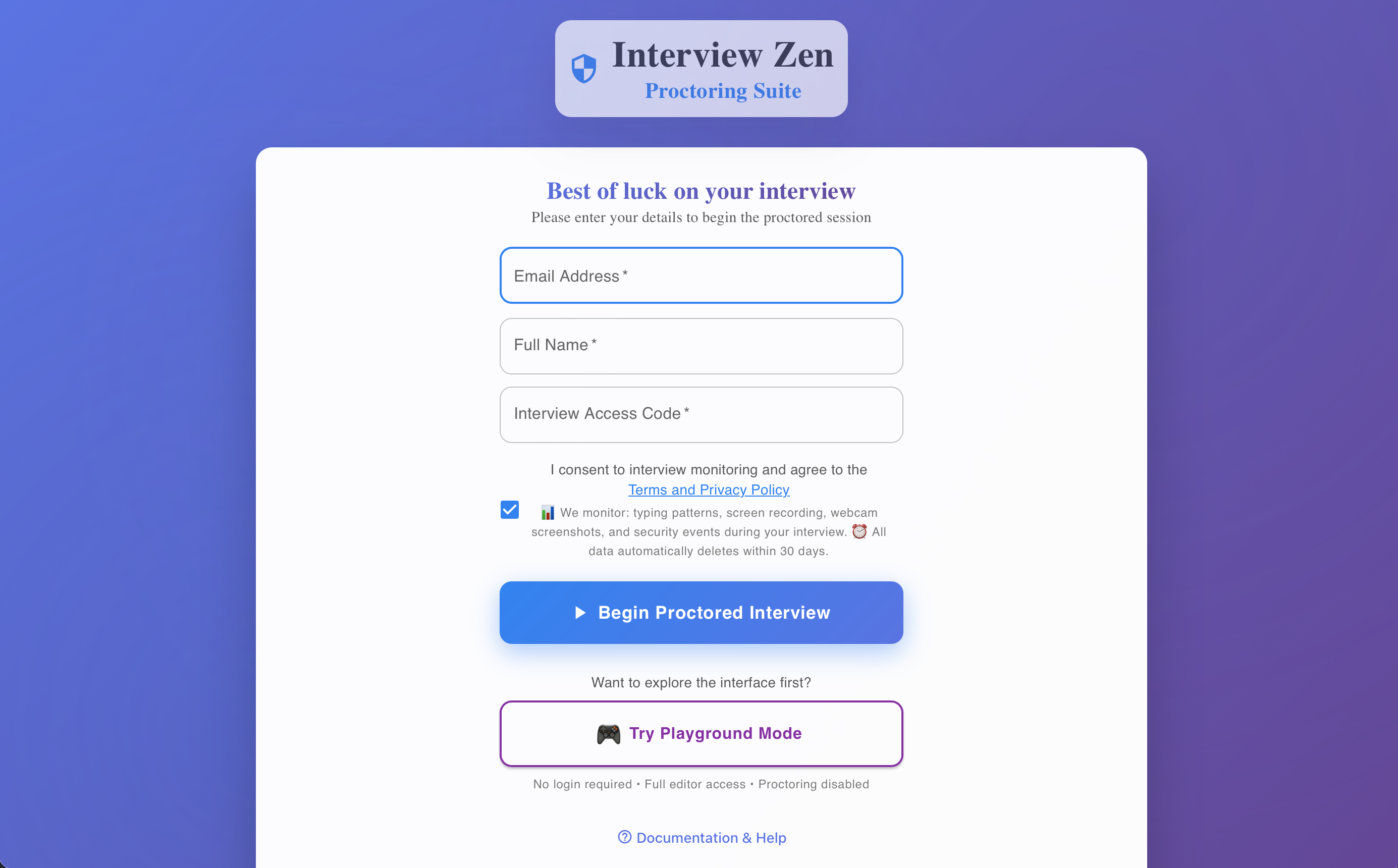
Step 3: Enter Your Access Code
Open the app and paste your interview access code from the invitation email. The app validates your code and loads your interview.
Step 4: Grant Permissions
Before your interview begins, the app walks you through three permission checks:
| Permission | Why It's Needed | How to Grant |
|---|---|---|
| Camera | Periodic webcam photos during the interview | Click the camera card — the app triggers the system dialog |
| Screen Recording | Periodic screenshots of your work | Grant access in System Preferences (macOS) or Settings (Windows) |
| App Check | Verifies no prohibited apps are running | Close any flagged apps if prompted |
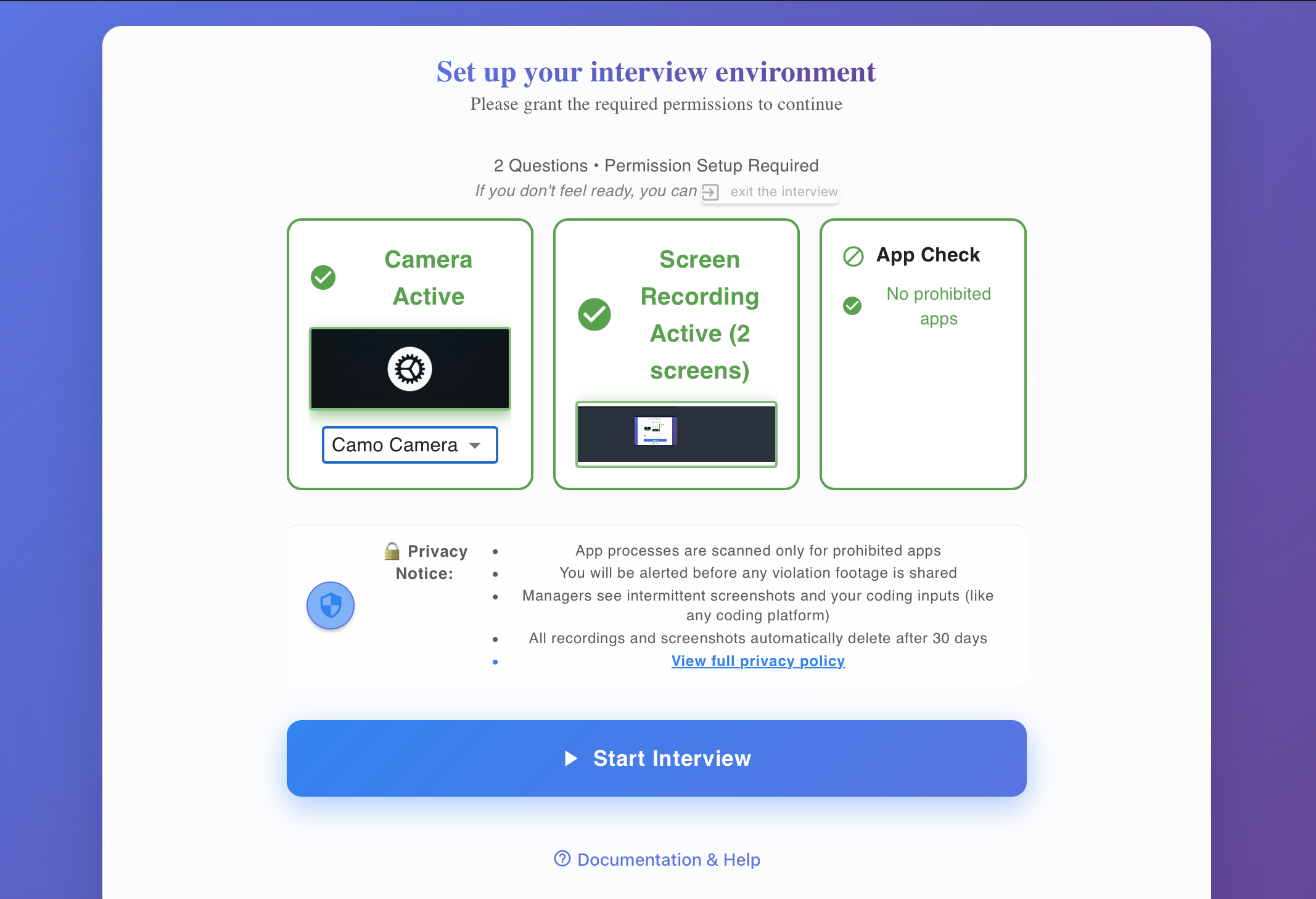
Each card turns green with a checkmark once the permission is granted. If something needs attention, the card shows an orange warning with clear instructions on what to do.
macOS note: Screen recording permission requires granting access in System Preferences > Privacy & Security > Screen Recording. After enabling it, the app may need a restart — there's a "Restart Now" button that handles this for you.
Step 5: Start Your Interview
Once all permissions are green, click "Start Interview" and you're in. You'll see your first coding question and a full-featured code editor.
The Code Editor
Interview Zen includes a real code editor — not a basic text box. You get:
- Syntax highlighting for 13+ languages (JavaScript, TypeScript, Python, Java, Go, Rust, C++, C#, Ruby, PHP, Swift, SQL, and more)
- Autocomplete and IntelliSense powered by real language servers (the same technology used in VS Code)
- Multiple language support — switch languages if the question allows it
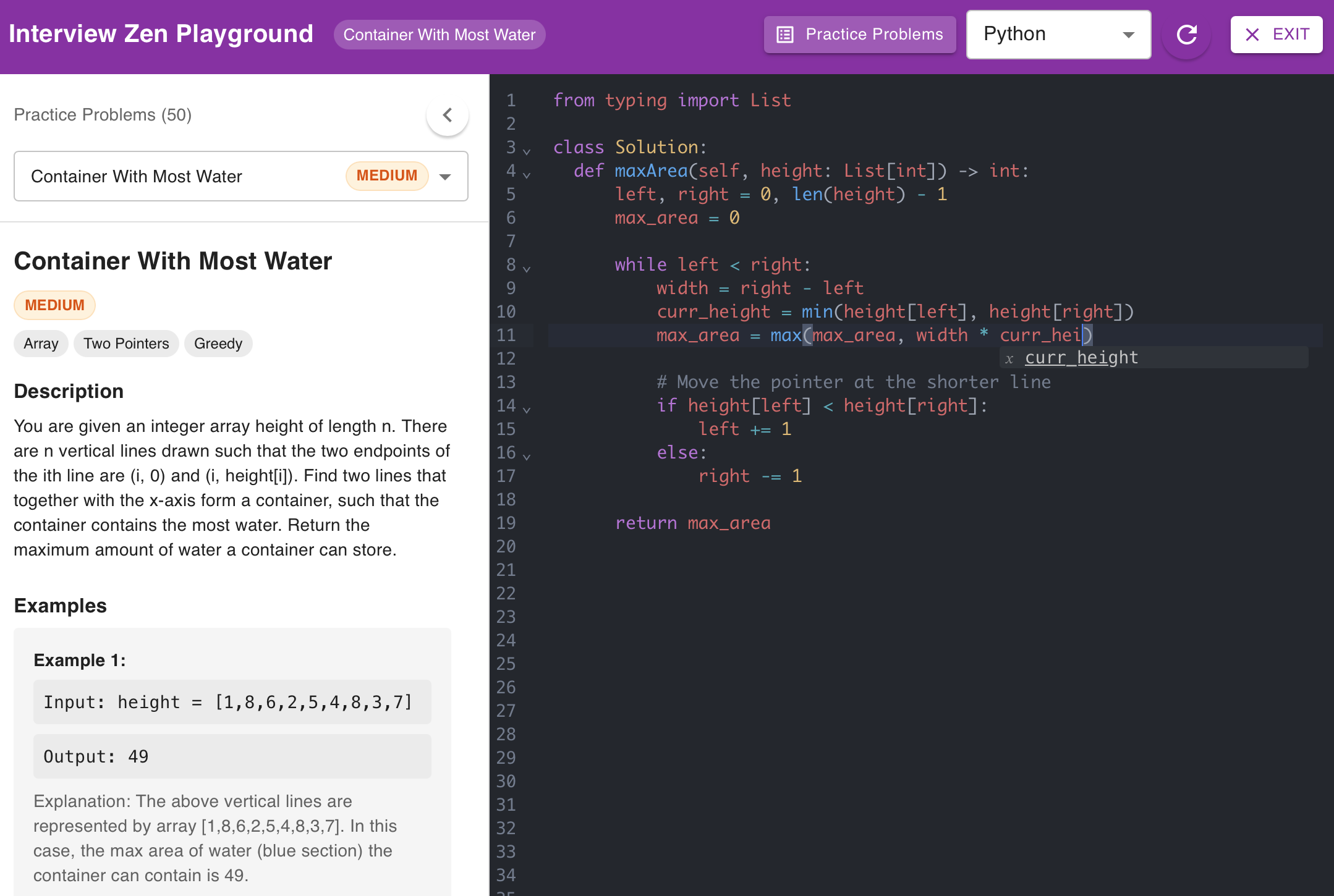
This is a standalone coding environment. You write your code directly in the app, navigate between questions, and submit when you're done. There's no separate video call or screen share with an interviewer watching live.
What Gets Recorded
We believe you should know exactly what's being captured. Here's the complete list — nothing more, nothing less:
Periodic Screenshots
The app takes screenshots of your screen at intervals during the interview. These are not continuous video — they're periodic snapshots that give managers a sense of your workflow and what was on screen.
Periodic Webcam Photos
The app captures webcam photos at intervals (roughly every 9 minutes, targeting about 5 photos per interview). These confirm you're present and working independently. They are not live-streamed to anyone.
Keystroke Activity
Your keystrokes within the code editor are recorded as part of your answer submission. This shows how your solution evolved over time. Keystrokes in other applications or password fields are never captured.
App Monitoring
The app periodically scans which applications are running to check for prohibited software (see "What's Not Allowed" below). It logs the names of running processes — it does not read the contents of other applications.
Violation Evidence
If a prohibited app is detected or the interview is locked (see below), a short evidence clip may be captured to document what happened. This clip is available to the manager reviewing your interview.
What's Allowed vs. What's Not
| Allowed | Not Allowed |
|---|---|
| Any code editor or IDE | AI coding assistants (ChatGPT, Copilot, Claude, Tabnine) |
| Terminal / command line | Communication apps (Discord, Slack, Teams, WhatsApp, Telegram) |
| Documentation (MDN, Python docs, language references) | Remote access tools (TeamViewer, AnyDesk, VNC, Chrome Remote Desktop) |
| Stack Overflow (for understanding concepts) | Screen sharing software |
| Calculator, notes, file explorer | Other browsers with AI tools |
Looking up documentation is expected and viewed positively. Good engineers know how to find information — interviewers want to see that skill.
If you accidentally open a prohibited app, close it immediately. The app logs the event, but a brief accidental opening that's quickly closed is treated very differently from sustained use.
Interview Lockout — What It Is and How It Works
Interview Zen monitors your camera and screen recording streams during the interview. If either stream is lost — for example, if your camera disconnects, the app loses screen access, or your computer goes to sleep — the interview may be temporarily locked.
What happens during a lockout:
- A 5-second grace period for screen recording loss (to handle brief interruptions)
- A 10-second grace period for camera loss (slightly longer since camera issues are more common)
- If the stream doesn't recover within the grace period, a lockout overlay appears on screen
What you see during a lockout:
- An "Interview Locked" message explaining what happened
- Status chips showing whether your camera and screen recording are OK or lost
- A "What should I do?" section with steps to resolve the issue
- A "Resume Interview" button that appears once your streams are restored
How to recover:
- If it auto-recovers: The lockout clears automatically once the streams are restored. No action needed.
- If streams show as OK but you're still locked: Click the "Resume Interview" button to manually unlock.
- If it doesn't recover: Check your camera connection and screen recording permissions, then the app will detect the restored streams.
The lockout is temporary and recoverable. Your interview timer pauses during a lockout, and your work is preserved. You won't lose your code or your progress.
Disconnection and Network Issues
If your internet connection drops during the interview:
- Your code and progress are saved locally in the app
- The app will attempt to reconnect automatically
- Evidence uploads queue locally and upload when your connection returns
- The interview continues — you can keep coding even while offline
If the disconnect is prolonged, the app preserves everything and uploads when connectivity returns. You won't lose work.
Your Privacy
What managers see:
- Your code submissions with keystroke replay
- Periodic screenshots from during the interview
- Periodic webcam photos
- A list of any violation events (prohibited apps, focus loss)
- Evidence clips for any violations that occurred
What managers do NOT see:
- Live video of you during the interview
- The contents of other applications on your computer
- Your browsing history outside the interview
- Any files on your computer
- Passwords or credentials
- Anything before or after your interview session
Data retention
- All interview data is automatically deleted after 30 days
- Your data is encrypted during transmission and at rest
- Only the hiring team at the company that invited you can access your data
- You can request early deletion of your data by emailing [email protected]
Our promise to you
We built Interview Zen because we believe interviews should be fair for everyone — candidates and companies alike. The monitoring exists to verify integrity, not to spy on you or create a stressful environment. You always know exactly what's being recorded. There are no hidden features, no background processes running outside the interview, and no data collection beyond what's listed above.
If something goes wrong — a technical issue, a false violation, an unfair flag — we want to hear about it. Email [email protected] and we'll make it right.
Playground Mode
Want to try the editor before your interview? The app includes a Playground Mode where you can:
- Write code in any supported language
- Test the autocomplete and syntax highlighting
- Practice with sample coding problems
- Get comfortable with the interface — no recording, no monitoring
Access it from the login screen by clicking "Try Playground Mode."
FAQ
Can I use multiple monitors? Yes. The app captures all displays. Using multiple monitors is normal developer behavior and is not flagged.
Can I use my own editor (VS Code, etc.) instead of the built-in one? No — the interview questions and your answers live inside the app's editor. But the editor supports autocomplete via language servers, so it's a comparable experience.
What if I need to use the bathroom? Step away if you need to. The timer continues, and the webcam will show you're not at your desk, which is fine. Brief absences are normal and not flagged.
What if my camera doesn't work? The app will guide you through fixing it during the permission setup. If it fails during the interview, you'll see the lockout screen with instructions to recover (see "Interview Lockout" above).
Will my interviewer be watching me live? No. Interview Zen is not a live proctoring service. No one is watching your camera feed in real time. The webcam photos and screenshots are reviewed after you submit.
Can I take notes on paper? Yes. Paper notes won't be captured by the screen recording, and that's perfectly fine. Many candidates sketch out their approach before coding.
Need Help?
- Before your interview: Email [email protected] with your interview date and we'll prioritize your issue.
- During your interview: If something breaks, the lockout screen has recovery steps. If you can't resolve it, email support and we'll help you reschedule if needed.
- After your interview: Questions about your data or privacy? Email [email protected].